
How to Set Up HotPlayer on Firestick: Complete Guide
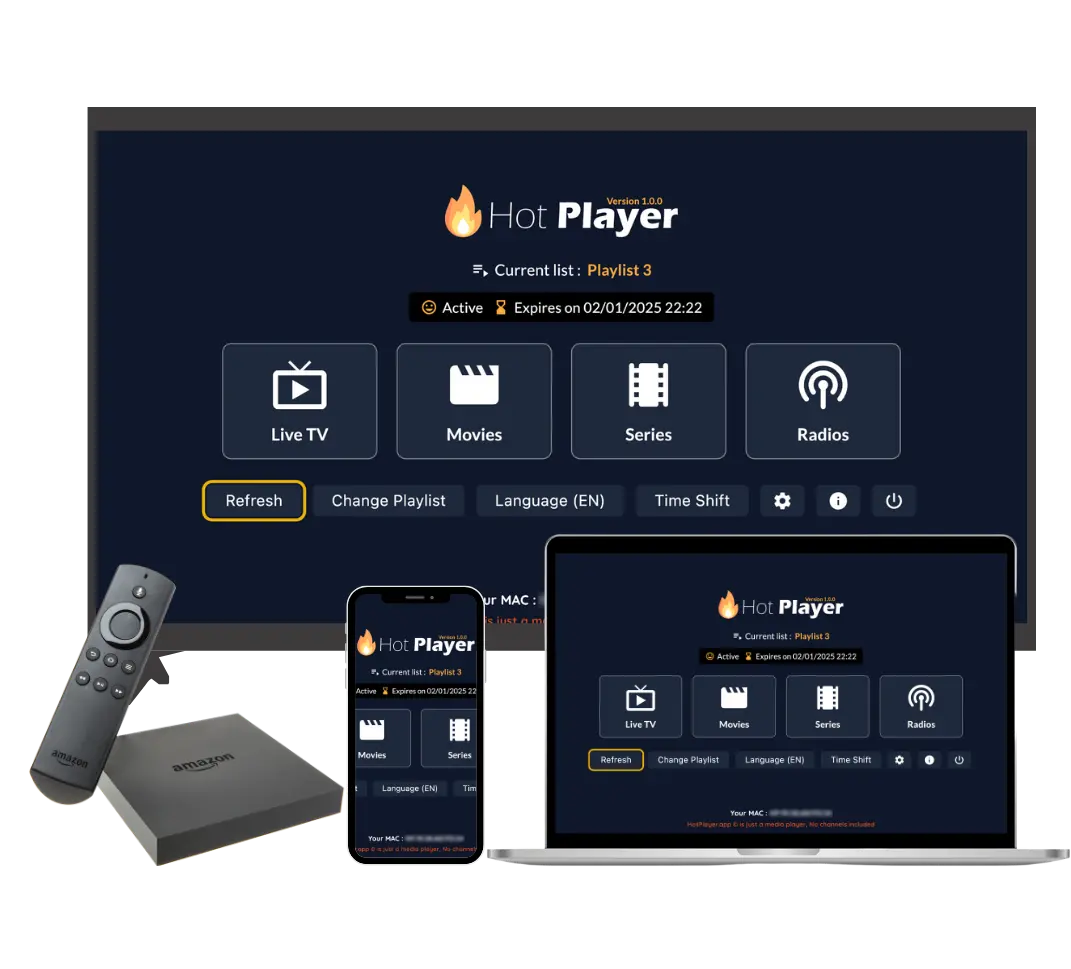
Amazon Firestick is one of the most popular devices for IPTV streaming. Setting up HotPlayer on Firestick is straightforward, but it requires a few steps since the app isn't available in the Amazon Appstore. This guide will walk you through the complete installation process.
Important to Remember: HotPlayer is a free IPTV player app that you install on your Firestick. The app itself doesn't include any channels or content. To watch TV shows, movies, and live channels, you need to subscribe to our IPTV service and add the playlist to HotPlayer.
The installation process involves enabling "Apps from Unknown Sources," installing the Downloader app, and then downloading the HotPlayer APK. Don't worry - it's easier than it sounds!
Requirements for Firestick
Before starting the installation, make sure you have:
What You Need:
- Amazon Firestick or Fire TV: Any model (Firestick 4K, Fire TV Cube, Fire TV Stick Lite, etc.)
- Internet Connection: Stable Wi-Fi connection (minimum 10 Mbps for HD, 25 Mbps for 4K)
- Firestick Remote: Your Firestick remote control for navigation
- Storage Space: At least 100 MB of free storage (HotPlayer APK is approximately 50-80 MB)
- IPTV Subscription: An active IPTV subscription to get playlist credentials (after installation)
- Amazon Account: Active Amazon account linked to your Firestick
Note: This guide works for all Firestick models (Firestick 4K, Fire TV Stick, Fire TV Cube, Fire TV Stick Lite) and Fire TV devices. The process is the same regardless of which model you have.
Step 1: Enable Apps from Unknown Sources
By default, Firestick only allows installation from the Amazon Appstore. To install HotPlayer APK, you need to enable installation from unknown sources. This is a one-time setting.
How to Enable Unknown Sources:
- Go to Settings:
- From the Firestick home screen, navigate to the top menu
- Select "Settings" (gear icon)
- Open My Fire TV:
- Scroll down and select "My Fire TV" (or "Device" on older models)
- Press OK/Select on your remote
- Access Developer Options:
- Select "Developer Options" from the menu
- If you don't see Developer Options, go to "About" and click on "Fire TV Stick" 7 times to enable it
- Enable Apps from Unknown Sources:
- Find "Apps from Unknown Sources" in the Developer Options menu
- Toggle it ON (it will turn blue/active)
- You may see a warning - select "Turn On" to confirm
Important: Enabling "Apps from Unknown Sources" allows you to install apps from outside the Amazon Appstore. This is safe when downloading from official sources like our HotPlayer APK. After installation, you can turn this setting off if you prefer, but you'll need it on to install HotPlayer.
Step 2: Install Downloader App
The Downloader app is essential for downloading the HotPlayer APK. It's a free app available in the Amazon Appstore.
How to Install Downloader:
- Open Amazon Appstore:
- From the Firestick home screen, navigate to "Apps"
- Select "Appstore" or search for it
- Search for Downloader:
- Use the search function in the Appstore
- Type "Downloader" using the on-screen keyboard
- Select "Downloader" from search results (by AFTVnews)
- Install Downloader:
- Click "Get" or "Download" button
- Wait for the installation to complete (usually 30-60 seconds)
- Once installed, you can open it or return to home screen
Tip: The Downloader app is free and safe. It's one of the most popular apps for Firestick users who want to install APK files. You'll use it to download the HotPlayer APK in the next step.
Step 3: Download HotPlayer APK
Now that you have the Downloader app installed, you can download the HotPlayer APK. There are two methods:
Method 1: Using Downloader Code (Easiest)
- Open Downloader App:
- Launch the Downloader app from your Firestick apps list
- Wait for it to load
- Enter Downloader Code:
- You'll see a URL field and a "Shortcuts" section
- Look for "Shortcuts" or "Go" button
- Enter the code: 395800
- Press "Go" or "Download"
- Wait for Download:
- The APK will start downloading automatically
- Wait for the download to complete (usually 1-2 minutes)
- You'll see a download progress indicator
Method 2: Using Direct URL
- Open Downloader App:
- Launch the Downloader app
- Enter APK URL:
- In the URL field, enter: https://apk.hotplayer.app
- Use the on-screen keyboard to type the URL
- Double-check the URL is correct
- Download APK:
- Press "Go" button
- Wait for the download to complete
Recommended: Method 1 (Downloader Code) is easier because you only need to enter a 6-digit code instead of typing the full URL. Both methods work equally well.
Step 4: Install HotPlayer
Once the APK download is complete, you can install HotPlayer on your Firestick:
Installation Steps:
- Open Downloaded APK:
- After download completes, Downloader will show "Install" button
- If not, go to "Downloads" section in Downloader and find the APK file
- Select the HotPlayer APK file
- Start Installation:
- Click "Install" button
- Wait for the installation to begin
- Wait for Installation:
- Installation typically takes 30-60 seconds
- You'll see a progress bar
- Don't turn off your Firestick during installation
- Installation Complete:
- You'll see "App installed" or "Installation complete" message
- Click "Open" to launch HotPlayer immediately
- Or click "Done" to install later
- Delete APK File (Optional):
- After installation, you can delete the APK file to free up space
- In Downloader, go to "Downloads" and delete the APK file
- This is optional but recommended to save storage
Success! HotPlayer is now installed on your Firestick. You can find it in your Apps list. The app is ready to use, but you'll need to add your IPTV playlist to start watching content.
Step 5: First Launch and Setup
When you first open HotPlayer on your Firestick, here's what to expect:
Initial Setup:
- Launch HotPlayer:
- From Firestick home screen, go to "Apps"
- Find HotPlayer in your apps list
- Select it and press OK to open
- App Permissions:
- HotPlayer may request permission to access storage (for playlist files)
- Select "Allow" when prompted
- You may also see network permission - allow this for streaming
- Welcome Screen:
- You'll see a welcome screen or tutorial (if available)
- Read through or navigate past it
- Empty Player Notice:
- HotPlayer will appear empty with no channels
- This is normal - the app is just a player
- You'll see options to "Add Playlist" or "Settings"
- Navigate to Settings:
- Use your Firestick remote to navigate to Settings
- Look for "Playlist" or "Add Playlist" option
- This is where you'll add your IPTV subscription playlist
Remember: HotPlayer is a free player app. Without an IPTV playlist subscription, the app will remain empty. You need to subscribe to our IPTV service to get a playlist with channels and content.
Adding Your IPTV Playlist
After installing HotPlayer, the next step is to add your IPTV playlist. Here's how to do it on Firestick:
Step 1: Subscribe to IPTV Service
- Visit our packages page and choose a subscription plan
- Complete the checkout process
- You'll receive an email with your playlist credentials (URL, username, password)
Step 2: Add Playlist to HotPlayer on Firestick
HotPlayer supports three methods for adding playlists on Firestick:
Method A: M3U URL (Recommended)
- Open HotPlayer app on Firestick
- Navigate to Settings → Playlist → Add Playlist
- Select "Add URL" or "M3U URL"
- Enter the playlist URL from your subscription email using the on-screen keyboard
- Tap "Save" or "Load"
- Wait for the playlist to download (2-5 minutes)
Method B: Upload M3U File
- Download the M3U file from your subscription email to a USB drive
- Connect USB drive to Firestick (if supported) or use a file manager app
- Open HotPlayer → Settings → Playlist → Import File
- Navigate to the M3U file and select it
- Wait for import to complete
Method C: Xtream Codes API
- Open HotPlayer app
- Go to Settings → Xtream Codes or API
- Enter Server URL, Username, and Password from your subscription email
- Tap "Test Connection" to verify
- Tap "Save" and wait for channels to load
Tip: The M3U URL method (Method A) is recommended for Firestick because it automatically updates your playlist whenever you open the app. Xtream Codes API (Method C) is also great because it requires shorter inputs, making it easier with the Firestick remote.
Different Firestick Models
The installation process is the same for all Firestick models, but here are some model-specific notes:
Fire TV Stick (2nd Gen, 3rd Gen, 4K, 4K Max)
All standard Firestick models work perfectly with HotPlayer. The installation process is identical for all models.
Fire TV Cube
Fire TV Cube has more processing power and storage, making it excellent for IPTV streaming. Installation is the same as Firestick.
Fire TV Stick Lite
The Lite version works great with HotPlayer. It has slightly less storage, so make sure to delete the APK file after installation.
Fire TV (Built-in TV)
If your TV has Fire TV built-in, the process is the same. Use your TV remote to navigate through the installation steps.
Using Firestick Remote
Navigating HotPlayer on Firestick requires using your Firestick remote. Here are some tips:
Remote Control Tips:
- D-Pad (Directional Pad): Use to navigate through menus, channel lists, and options
- OK/Select Button: Press to select items, play channels, or confirm actions
- Back Button: Use to go back to previous screen or exit menus
- Home Button: Returns to Firestick home screen (may close HotPlayer)
- Menu Button: Opens context menu or settings (three horizontal lines)
- Voice Search: If your remote has Alexa, you can use voice commands to search for channels
- On-Screen Keyboard: When entering URLs or searching, use the on-screen keyboard carefully
Pro Tip: You can also use the Fire TV app on your smartphone as a remote control. This makes typing URLs and navigating much easier than using the physical remote.
Troubleshooting Firestick Issues
If you encounter problems while installing or using HotPlayer on Firestick, try these solutions:
Issue: Can't Enable Unknown Sources
Solutions:
- Enable Developer Options: Go to Settings → My Fire TV → About → Click on "Fire TV Stick" 7 times
- Check Settings Path: On newer models, it might be under Settings → My Fire TV → Developer Options
- Update Firestick: Make sure your Firestick software is updated to the latest version
- Restart Firestick: Unplug for 30 seconds, then plug back in and try again
Issue: Downloader App Won't Download APK
Solutions:
- Check Internet: Ensure your Firestick has stable Wi-Fi connection
- Verify URL/Code: Make sure you're using the correct URL (https://apk.hotplayer.app) or code (395800)
- Clear Downloader Cache: In Downloader settings, clear cache and try again
- Update Downloader: Make sure Downloader app is updated to latest version
- Try Alternative Method: If code doesn't work, try entering the full URL
Issue: Installation Fails or Stuck
Solutions:
- Check Storage: Ensure your Firestick has enough free storage (at least 100 MB)
- Restart Firestick: Unplug for 30 seconds, then try installation again
- Delete Old APK: If you have an old APK file, delete it and download fresh
- Check Unknown Sources: Verify "Apps from Unknown Sources" is still enabled
- Try Re-download: Delete the APK and download it again
Issue: App Crashes or Freezes
Solutions:
- Clear App Cache: Go to Settings → Applications → Manage Installed Applications → HotPlayer → Clear Cache
- Restart Firestick: Unplug for 30 seconds, then plug back in
- Reinstall App: Delete HotPlayer and reinstall following the steps above
- Update Firestick: Make sure your Firestick software is up to date
- Check Internet: Poor connection can cause app issues
Issue: Can't Enter Playlist URL
Solutions:
- Use Xtream Codes: Instead of long URL, use Xtream Codes API (shorter inputs)
- Fire TV App: Use the Fire TV app on your smartphone to enter text more easily
- Copy Carefully: Make sure you copy the entire URL correctly from your email
- Check URL Format: Ensure the URL starts with http:// or https://
- Try File Upload: If your Firestick supports USB, download M3U file to USB and upload
Issue: Channels Buffer or Won't Play
Solutions:
- Check Internet Speed: Test your connection - need at least 10 Mbps for HD, 25 Mbps for 4K
- Use Ethernet Adapter: Connect Firestick via Ethernet for more stable connection (if supported)
- Reduce Quality: Lower streaming quality in HotPlayer settings
- Close Other Apps: Close other apps on Firestick that might be using bandwidth
- Restart Router: Sometimes a router restart improves connection
- Move Closer to Router: If using Wi-Fi, ensure Firestick is close to router
Tips for Best Firestick Experience
Here are some tips to get the most out of HotPlayer on your Firestick:
1. Use Ethernet Adapter
For Firestick models that support it, use an Ethernet adapter for more stable streaming and less buffering than Wi-Fi.
2. Organize with Favorites
Use HotPlayer's Favorites feature to save your most-watched channels for quick access without scrolling through thousands.
3. Enable EPG (Electronic Program Guide)
Enable EPG in settings to see what's currently playing and what's coming up on each channel.
4. Keep Firestick Updated
Regularly update your Firestick software to ensure best compatibility and performance with HotPlayer.
5. Use Categories for Navigation
Navigate by categories (Sports, Movies, News, etc.) instead of scrolling through all channels - much faster on Firestick.
6. Clear Cache Regularly
Periodically clear HotPlayer's cache in Firestick settings to free up space and improve performance.
7. Close Unused Apps
Close other apps running on your Firestick to free up resources and ensure smooth HotPlayer performance.
8. Use Fire TV App for Remote
Download the Fire TV app on your smartphone to use it as a remote - makes typing URLs and navigation much easier.
Conclusion
Setting up HotPlayer on Firestick is straightforward once you know the steps. The process involves:
- Enable "Apps from Unknown Sources" in Fire TV Developer Options
- Install Downloader app from Amazon Appstore
- Download HotPlayer APK using Downloader (code 395800 or URL)
- Install HotPlayer from the downloaded APK
- Add your IPTV playlist by subscribing to our service and entering credentials
- Start streaming thousands of channels and on-demand content
Remember: HotPlayer is a free player app that you install on your Firestick. The app itself doesn't include content - you need to subscribe to our IPTV service to get a playlist with channels and movies. Once you have both the app and a subscription, you'll have access to 25,000+ channels and 100,000+ VOD titles on your Firestick. If you need help with setup, our 24/7 support team is always ready to assist.
Ready to Set Up HotPlayer on Your Firestick?
Follow the steps above to install HotPlayer and subscribe to our IPTV service to start streaming 25,000+ channels and 100,000+ VOD titles on your Firestick today!